Replace TV Home Screen Ads with Your Favorite Apps
Replace an ad-filled Android TV or Google TV home with your favorite apps. CleanYourTV uses Wi-Fi debugging to identify unwanted services, save recovery records and install a configurable native launcher, guided by your coding assistant.
Works with Claude Code · Codex · Gemini CLI
Requirements
- Android >= 8.0 (API 26)
- Git
- Python 3
- JDK 17
- Android SDK 34
Overview
What you get
- A native TV launcher with a favorite-app dock, app grid, clock, input selector and configurable themes.
- Device-specific cleanup using package disabling, with a plan based on the apps and services you use.
- Recovery records and scripts, plus tools for screenshots, themes and follow-up checks.
Good fit
- Replacing an Android TV or Google TV home screen full of recommendations with direct access to your apps.
- Removing unused manufacturer services while keeping a record of the changes and a way to restore them.
Tutorial
See what the new TV home screen changes
Do you have to search through ads and recommendations whenever you turn on the TV? CleanYourTV connects over Wi-Fi, disables unwanted preinstalled services you select and installs a native launcher built around your favorite apps.
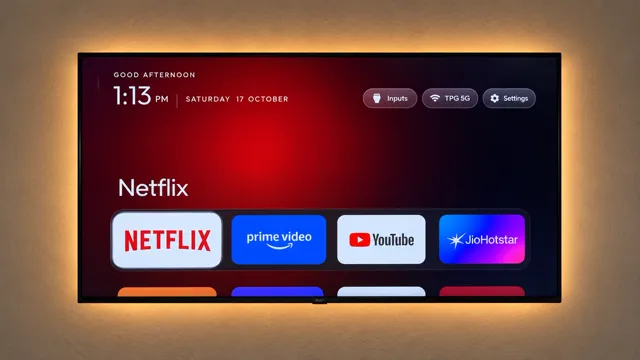
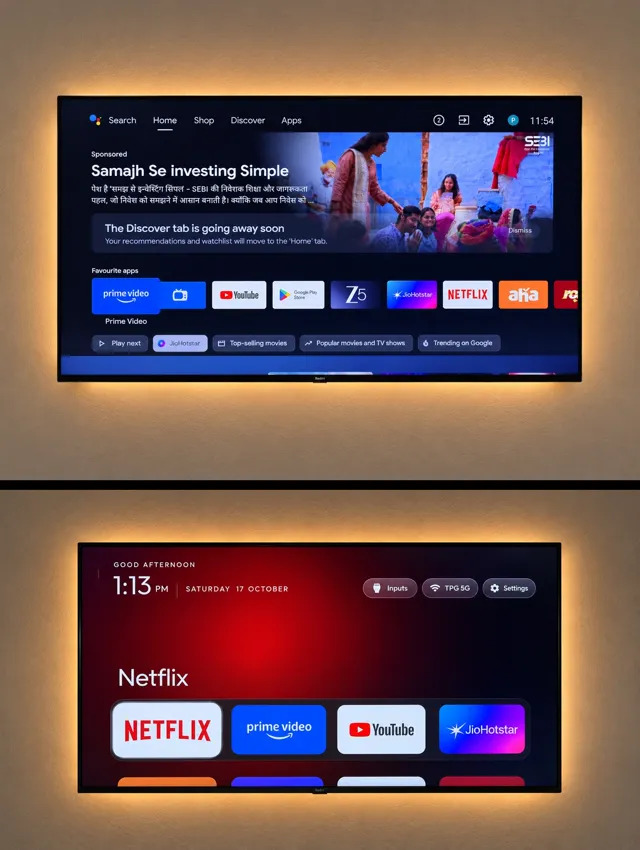
The official images above show the new home screen and a before-and-after comparison. In the second image, compare the top and bottom photos:
- The large recommendation area becomes a clock and the name of the focused app.
- Favorite apps sit in a dock; the remaining apps open from the grid below.
- Inputs, network and settings remain accessible, with focus controlled by the remote’s directional pad.
Start with a four-app dock, then change its order and theme. A launcher is the app that provides the screen you see when you press Home.
Prepare the TV, connect and save its original state
Check the TV and computer requirements
| Component | What this route needs |
|---|---|
| TV | Android TV or Google TV; the launcher requires Android 8.0 / API 26 or later and permission to install a third-party home app |
| Network | Computer and TV on the same Wi-Fi, with a working debugging connection |
| Coding assistant | Shell access; Claude Code, Codex or Gemini CLI |
| Computer tools | Git and Python 3; building the launcher also needs JDK 17, Android SDK platform 34 and build-tools 34.0.0 |
- Find the TV’s model, Android version and IP address in Settings.
- Open About and press OK on the Build or version entry seven times to enable developer options. Turn on USB debugging and any Network or ADB debugging switch provided. Menu labels vary by device.
- Download the repository in a terminal, then open your coding assistant in its directory:
git clone https://github.com/Gathin23/cleanyourtv.git
cd cleanyourtvPROMPT.md contains the official full prompt. The staged requests below were written for this tutorial from the official documentation. Replace the bracketed information.
Connect, identify and back up first
Send this to your coding assistant in the repository:
Read README.md and PROMPT.md and use this repository to prepare my TV.
TV: [model, Android version and IP address]. Computer OS: [OS].
Check Python, JDK 17 and Android SDK 34 dependencies and prepare them for my OS.
This stage covers connection, device identification and backup.
Check the Android version and third-party launcher installation support,
and read the matching device examples.
Tell me when to accept debugging authorization on the TV;
first ask about USB peripherals and how the TV connects to the network.
Save the complete package list, disabled packages, system properties,
settings and current Home app. Give me the backup location.
Explain which parts of cleanup and launcher replacement this TV supports,
then wait for me to choose what to clean.
Accept the debugging authorization prompt on the TV. Check that the reported model, Android version and IP match your device, then open the backup folder. If the TV offers pairing-code wireless debugging, have the assistant follow the official pairing instructions before continuing.
Choose the cleanup plan and install the launcher
Turn your habits into a cleanup plan
- List the apps you watch and whether you use voice control, casting, Live TV and system updates.
- Choose four apps for the dock, in the order you use them most.
- Ask the assistant to use the current device’s package list to identify proposed changes and retained services. Model examples help check device differences.
Continue with:
My regular apps are [apps]. Put [four apps] in the dock, in this order.
Keep these features: [casting, voice, Live TV, system updates or others I use].
Use this TV's package list and PROMPT.md to propose services to disable or keep.
Explain each choice, including how you will handle the current launcher
and essential system services.
Give me the cleanup-list and recovery-record locations.
Show the plan for me to choose first.
Base your choices on the features you use. An unfamiliar package name alone does not tell you its purpose. Once you choose the plan, send:
Apply the plan I selected, disabling the listed services.
Work in small batches and check TV behavior and screenshots after each batch.
Reuse this repository's launcher, configure my app order, build and install it.
Follow the device-specific rules to set the new launcher as the Home app.
Verify that pressing Home actually opens it.
Provide the cleanup list you applied, backup and recovery-record locations,
and the complete restore command.
If the earlier checks found that this device supports cleanup only, apply the selected cleanup and keep its existing launcher as Home.
Check the result with your TV remote
- Press Home and confirm that it opens the launcher you kept or installed. Use the directional pad and OK to launch a favorite app, then return Home.
- Play some content and try the casting, voice or Live TV functions you chose to keep.
- Check Inputs, Settings, volume and the remote’s app shortcuts. Test held buttons for repeated responses too.
- Reboot the TV. Confirm that it returns to a usable home screen and have the assistant compare disabled packages with the applied list.
If a function stops working, describe the specific button or action. Have the assistant use the change record to identify and restore the affected component.
Adjust your favorite apps and theme
Start with one change: expand the dock from four apps to five and reorder them. Give the assistant the new order and ask it to use columns and dock_apps, checking the installed apps’ package names.
Themes live in themes/ and use config.json. tools/theme.sh accepts a theme directory to change colors, wallpaper and layout without rebuilding the APK. See the launcher’s default config.xml for built-in settings.
Send:
Create a separate theme configuration for this TV.
Use [4 to 7] dock slots, with [apps] in this order.
Use [repository theme or my image] as the color or wallpaper reference.
Keep the applied cleanup list and enabled system features; change the launcher config.
Reuse supported theme keys and apply the theme with the theme script.
Give me its directory and the undo procedure.
Check app order and focus movement, and confirm that pressing Home in an app
returns to the launcher.
If debugging was closed earlier, enable it and reconnect first. Compare the app count, order and background before and after, then check that the directional pad reaches every entry. Use tools/theme.sh --reset to remove the theme overlay and return to the built-in configuration.
Keep a recovery path and move to another TV
Save your setup and restore instructions
Ask the assistant to collect these in the setup record:
- TV model, Android version and the exact path of the cleanup list applied.
- Original backup, recovery record under
~/.cleanyourtv/and theme directory. - A complete
tools/restore.shcommand using that list.
The restore script restores each package to its saved enabled or disabled state and sets the original launcher as the Home app. The new launcher remains installed. To restore, enable debugging and reconnect, then have the assistant use the same list and recovery record. Press Home to check the original launcher.
When the session is finished, turn off USB and network debugging, revoke debugging authorizations and reboot. Have the assistant follow the official closing steps to check that the debugging port is closed.
Describe the next TV’s needs
I want to use CleanYourTV on another television.
Device: [model, Android version and IP]. Computer: [OS].
Main use: [family Live TV, streaming apps, HDMI devices or other use].
Keep: [apps and system features].
Home preferences: [dock size, app order, colors or wallpaper].
Identify this device, check compatibility and save its original state first.
Then propose cleanup and launcher options.
Keep its cleanup list and recovery record separate.
Finish by checking real remote operation and the restore instructions.
Different models from the same brand can use different packages and firmware. Reuse the old theme as a preference reference while creating this TV’s own cleanup list and recovery record.
The code is MIT licensed; the bundled Outfit typeface uses SIL OFL 1.1. See the repository README, official prompt and restore guide for further details.