Bring Claude’s Design Workspace to Your Computer
Create slides, prototypes and dashboards with AI, then edit them locally. baoyu-design brings four Claude-style editors to your AI coding tool, so your edits and the agent’s changes stay in the same project files.
Works with Claude Code · Codex · Cursor
Requirements
- Node.js >= 22.20 (skills CLI)
Overview
What you get
- Local editors for slides, multi-artboard designs, design systems and data-backed dashboards, plus a dataviz chart-design skill.
- Project files that both you and the AI can edit, with element or region comments in the slide, canvas and design-system editors.
- PDF, HTML and PowerPoint export for slides; HTML, PDF and PNG export for design canvases.
Good fit
- Making a draft with AI, adjusting it by hand and asking the AI to continue from your changes.
- Turning product material into slides or prototypes, or CSV, TSV and JSON files into a dashboard with traceable data sources.
Tutorial
See how the local workspace works
AI has made a draft, but changing a few words or moving one element takes another round of explaining where it is. Jim Liu’s baoyu-design brings Claude’s design editors to your computer. Edit the result yourself, then let the AI continue from the same project files.
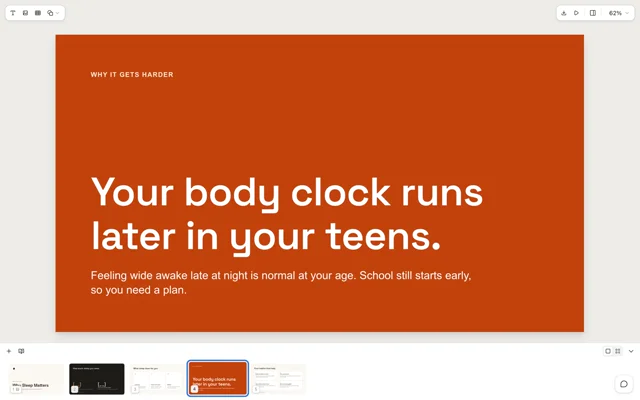
The video above introduces the package. The official screenshot shows a five-slide lesson about sleep in the slide editor. Notice the editing tools above and thumbnails below: the generated result remains editable and ready to present.
Version 2.3.0 includes five skills. Choose by what you want to make:
| Skill | What to use it for |
|---|---|
claude-slides | Create and edit slides; export PDF, HTML or PowerPoint |
claude-design | Arrange multiple artboards on a canvas for web designs or interactive prototypes |
claude-design-system | Organize colors, typography, spacing, components and assets for slides or canvases |
claude-dashboard | Turn CSV, TSV or JSON into dashboards with filters and traceable sources |
dataviz | Guide chart selection and color choices, with palette checks; it has no separate editor |
Compare it with other design skills
- huashu-design selects three drafts from six candidates to help you compare visual directions. baoyu-design focuses on editing the generated project locally and taking turns with the AI.
- Hallmark helps choose a web theme, build the first screen and check the page. baoyu-design provides different editors for slide decks, design canvases and data dashboards.
Install and find the slide skill
This exercise uses a five-slide product introduction to practice generating, editing by hand, revising with AI and exporting. Prepare Claude Code, Codex or Cursor, plus Node.js 22.20 or later for the skills installer. The editors themselves require Node.js 20+, except the dashboard, which requires 22+.
- Open a terminal in the project containing your product material. Run the official installation command:
npx skills add JimLiu/baoyu-design- Select
claude-slidesfirst, then choose the AI coding tool you use. Run the same command later to add other skills. - Check the installation path shown by the installer. The
claude-slidesfolder should includeSKILL.md,artifact-type/andscripts/. The local editor comes with the skill. - Open your AI coding tool in the same project. In Claude Code, use
/claude-slides; in Codex, use$claude-slides. You can also name the skill in your request.
Generate a five-slide product introduction
Put the product name, audience, problem, main capabilities and next action in brief.md. Add your logo and screenshots to assets/, along with any brand guidelines. Leave missing figures out rather than inventing statistics to fill a slide.
The following practice request was written for this guide. Send it in your AI coding tool:
Use claude-slides to create a five-slide product introduction from brief.md and assets/.
The audience is potential users seeing the product for the first time. Help them understand its purpose and want to try it.
Cover: product and positioning, the user’s problem, the core approach, the usage flow, and the next action.
Use only facts in the material and images I supplied. Ask me for missing information that affects the content.
If this workspace has design systems, list them and ask which to use. Otherwise, choose consistent typography and colors from the brief.
Give me a one-sentence outline for each slide. Wait for my confirmation, then build in designs/product-intro/.
Run the skill’s check, fix reported problems and open the local editor.
Return the project folder, editor URL and any content I still need to supply.
When reviewing the outline, check that each slide has one main job. Together, the slides should explain what the product does, how to use it and what to do next. Adjust the order before asking the AI to generate the deck.
Open the local URL returned by the AI. You should see slides and thumbnails. Read all five, then use presentation mode to check their order, headings and images. The editor runs on the computer where the project was created.
In this exercise, the project root is designs/product-intro/. Its slide index is designs/product-intro/project/deck.json, and each slide has an HTML file under designs/product-intro/project/slides/. The AI normally maintains these files. Edits you make in the editor save back to them.
Edit by hand, then hand it back to the AI
Change one heading and position
- Select the second slide in the editor. Rewrite its heading in language your users would use.
- Select an element and drag it to a better position. Once the change has saved, reopen the slide and check that it remains.
- Return to the same AI conversation and send:
Continue editing designs/product-intro/. Read the latest saved files first.
Keep the heading and element position I changed by hand on slide two.
Only shorten the body copy on slide three, emphasizing its three most important points. Keep the other slides and current visual style.
Run the skill’s check when done and let me review the result in the existing editor.
Check that slide three is shorter and your edits on slide two remain. This lets you handle small adjustments directly while asking the AI to reorganize content.
Point to a change with a comment
In the slide editor, click Comment, or press C, then click an element or drag over an area. Write what you want changed.
Tell the AI: “Read the unresolved comments in designs/product-intro/, make the changes and reply.” Comments live in the project’s comments.json; the AI reads, replies to and resolves them through the skill’s script.
To send comments directly from the editor, ask the AI to wait with the skill’s comments <root> --wait command, where <root> is this project folder. Send to agent appears while it waits. After handling a submission, the AI needs to start waiting again for the next round.
Export the result and adapt the workflow
Use the download menu at the top right of the slide editor to choose PDF, HTML or PowerPoint. Open the exported file and check headings, images and page breaks. Choose .pptx if you want to continue editing in PowerPoint.
For a lesson, project update or sales presentation, change the audience and content structure before changing the visual style:
Use claude-slides to make a presentation about [topic] for [audience].
After reading it, the audience should: [understand something or take an action].
Source material and assets: [document and image paths].
Length and priorities: [slide count and essential points].
Brand requirements: [design system path, or typography and color requirements].
Confirm the outline with me, then generate the deck and open the local editor.
Continue in the same project for revisions, preserving my manual edits.
Final export: [PDF / HTML / PowerPoint].
Switch to prototypes or dashboards
| New task | Skills and material to provide |
|---|---|
| A product website and mobile prototype | Install claude-design. Describe the artboards, click flows and assets, and ask the AI to show them on one canvas. Export HTML, PDF or PNG |
| Consistent branding across deliverables | Install claude-design-system. Supply brand guidelines, create colors, text styles and components, then ask claude-slides or claude-design to install and use that system in the project |
| A dashboard updated each month | Install claude-dashboard and dataviz. Supply CSV, TSV or JSON, metric definitions, date ranges and filters. Inspect provenance in Sources; ask the AI to replace the dataset and recalculate when new data arrives |
The skill code uses the MIT license.