Turn a Topic into a Paper-Style Cartoon Explainer
Make a 30–60 second portrait explainer with a cartoon presenter, paper textures and word-synced captions. Finn’s prompt guides Claude through script approval, voice auditions and HyperFrames animation.
Requirements
- Node.js
- Python
- FFmpeg
- HyperFrames
- Kokoro
- faster-whisper
Overview
What you get
- The complete author prompt and a Chinese translation.
- A staged guide to making a narrated cartoon explainer with your own topic.
Tutorial
Understand the explainer format
Use this prompt when you want to explain a topic without appearing on camera. It coordinates a script, narration, a cartoon presenter and animated visuals. The author’s sequence is to ask for the topic, get script approval, audition three voices, then animate against the finished narration.
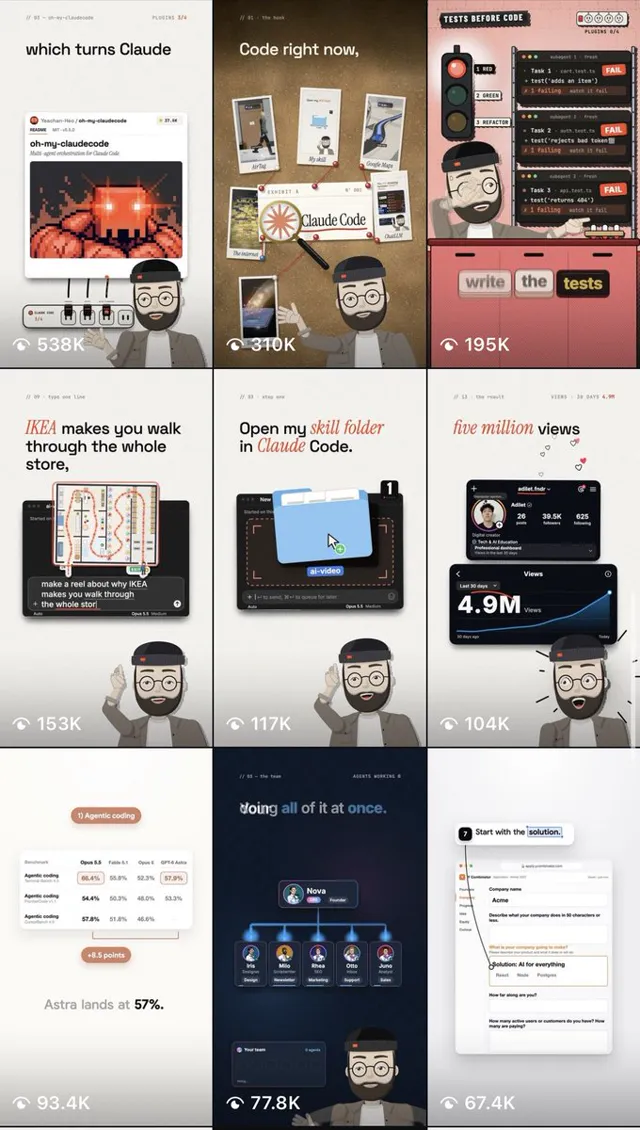
The attached sample introduces software tools. In its FFmpeg segment, speech-following text sits above a large red-and-black heading, a reference card and a typing animation. The presenter stands at the bottom right. Paper textures, halftone dots and red accents connect the scenes. The hosted sample is 52.2 seconds at 720×1280 and 30fps; the prompt requests a 1080×1920 production.
Choose between explainer approaches
- Turn a Script into a Hand-Drawn Explainer is an installable skill built around drawing and coloring illustrations. This prompt pairs a cartoon presenter with text and cards.
- Turn Narration into Animation in Seven Styles starts with an existing Chinese recording and offers multiple styles. This prompt starts with a topic and script, then specifies a red-and-black design with paper textures.
Turn a topic into an approved script
Use a Claude coding session that can work with a local project. Production uses Node.js, Python, FFmpeg, HyperFrames, Kokoro and faster-whisper. HyperFrames organizes and renders animation, Kokoro generates speech, and faster-whisper supplies speech timing information. Ask Claude to check the environment and explain what needs installing; see the official HyperFrames instructions for project initialization.
- Create a separate video project directory, open Claude there, and send the complete prompt from this page.
- When it asks for a topic, supply an audience, learning goal and required facts. Try “backup is not sync” for a first exercise.
The practice requests below were written by Opuskill. Replace the example details with your own material.
Topic: backup is not sync
Audience: people who keep work files in cloud storage
Goal: explain how a synchronized deletion can affect multiple devices, and why an independent historical copy matters
Must mention: sync helps access files across devices; deletions may sync; a backup needs to restore earlier versions
Do not invent product features or statistics
Use English narration, about 40 seconds, with three points
Show me two opening lines, three points and one closing line before generating speech- Read the script as one explanation. The opening introduces the confusion, the points resolve it, and the ending gives the viewer an action. Remove filler before approving it.
Your main input is the factual explanation and what the viewer should learn. Cards and sound effects should support that explanation.
Choose a voice and finalize narration timing
- Ask Claude to read the opening line in three Kokoro voices, as specified in the author’s prompt. Choose voices for the narration language and check technical terms.
- Pick one voice before generating the complete narration. The author requests speed 1.1 and shortening genuinely silent pauses longer than 0.24 seconds to 0.24 seconds.
- Listen to the whole recording. Check that word endings remain intact and pauses feel natural. Fix the text or pronunciation and regenerate affected speech before proceeding.
- Run faster-whisper on the final narration and compare its transcript with the approved script. Use this audio’s timing information for captions and animation.
Word-synced captions appear as their words are spoken. Headings, stamps and gestures follow relevant words too. Mouth opening follows audio loudness, which is a separate control from caption timing. After changing narration, realign the affected captions and actions.
Finish one scene before expanding the film
The prompt divides points into HyperFrames sub-compositions, each with a GSAP timeline. Layers run from paper through scenes, presenter and captions to wipes. Finishing one point first lets you check the picture, presenter and sound together.
- Ask Claude to build the “deletions may sync” point with a file card and a deletion animation:
Complete only the “deletions may sync” point using the approved narration
Follow the original paper background, red-and-black heading and the original cartoon presenter described in the prompt at the bottom right
Show the same file on two devices, then propagate a deletion between them
Align captions to the actual narration and drive mouth opening from the voice
Show a still and a preview with sound before expanding the film- Inspect the still at phone size. Can you read the captions? Does the card obscure the presenter? Does red emphasize the key information?
- Play the preview with sound. Does the deletion happen as it is explained? Does the mouth respond to speech? Can you hear narration over the effects?
- Give a precise revision, such as “the deletion starts too early; move it to the word ‘deletion’.” Approve this scene before completing the other points, opening and ending.
The author also asks for a snapshot of each point’s first frame and a clean npx hyperframes check before rendering. Keep one HTML entry in the project root and other source files in src/. Set initial hidden states in CSS to prevent a first-frame flash.
When the film is complete, ask Claude for the exported file location and the rendering command actually used by that project. Watch the full video on a phone to check caption edges, narration and the ending loop. Follow the licenses of the music and effects you select.
Make a local revision, then use your own topic
Start by changing the appearance while keeping the explanation fixed. This helps distinguish visual revisions from changes that require new narration:
Change the accent color throughout the film from red to deep blue #2457A7
Update highlighted heading words, stamps, numbers and underlines together
Keep the approved script, audio and timing
Show before-and-after stills of the same scene first
Changing a spoken sentence has more consequences: regenerate that sentence, update word timings, and check the scene length and the start of later scenes.
For your own topic, replace the bracketed fields below and send them with the complete prompt:
Topic: [one thing you want to explain]
Audience: [who will watch and what they already know]
Learning goal: [an observable action or judgment]
Required facts: [sources or file paths]
Narration language and duration: [language, within 30–60 seconds]
Visual material: [available screenshots, charts or diagrams to draw]
Presenter: [an original character’s appearance and clothing]
Approve the script, audition voices, approve one complete scene, then make the full film
Keep the script → voice → single scene → full film sequence so you can resolve content, voice and visual choices early.