Make Films in Code: Shorts, Ads and Music Videos
Make short films, ads and music videos with code. Cinecode guides Claude Code or Cursor through the script, visual direction, animation, sound and MP4 delivery, with Quick and Film workflows.
Works with Claude Code · Cursor
Requirements
- Node.js 22+
- Python 3.9+
- ffmpeg
- Chrome / Chromium / Edge
- GPU
Overview
What you get
- Quick mode: one film.html containing picture and Web Audio sound, a lower-resolution draft, targeted revisions and final MP4.
- Film mode: roadmap, script, style frame, animatic, picture rendering and layered sound for larger productions.
- Visual direction, optional narration, music and sound design, quality checks and a -14 LUFS final audio master.
Tutorial
Turn an idea into a film with pictures and sound
You have a subject or product, but need a way to connect the script, shots, animation and sound. Cinecode organizes these steps into an AI coding workflow: your assistant builds the visuals and audio in code, shows previews, then renders an MP4.
Choosing between Lemo, Cook and rea-video
- lemo-opuscar starts with visual styles and sample films. Cinecode includes its style recipes with the original license, alongside its own Quick workflow, director card, audio and checks.
- Cook focuses on making and improving work through repeated comparison with a reference.
- rea-video focuses on analyzing how a reference video was made and preparing shot lists and remake plans.
Start Cinecode with an idea, product information, a song or a reference video. This exercise makes a 15-second coffee ad to practise choosing a visual direction, reviewing a draft and requesting a local change.
Observe materials and motion in the examples
The first video above is converted from the official GIF reel: 30 seconds, 560×316, 8 fps, with no audio. Use it to observe visual approaches; it does not demonstrate the frame rate or soundtrack of a complete film.
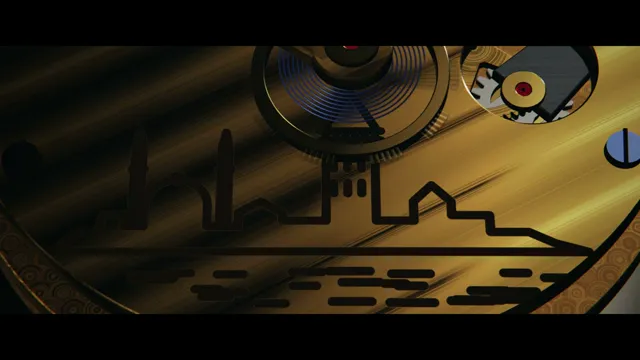
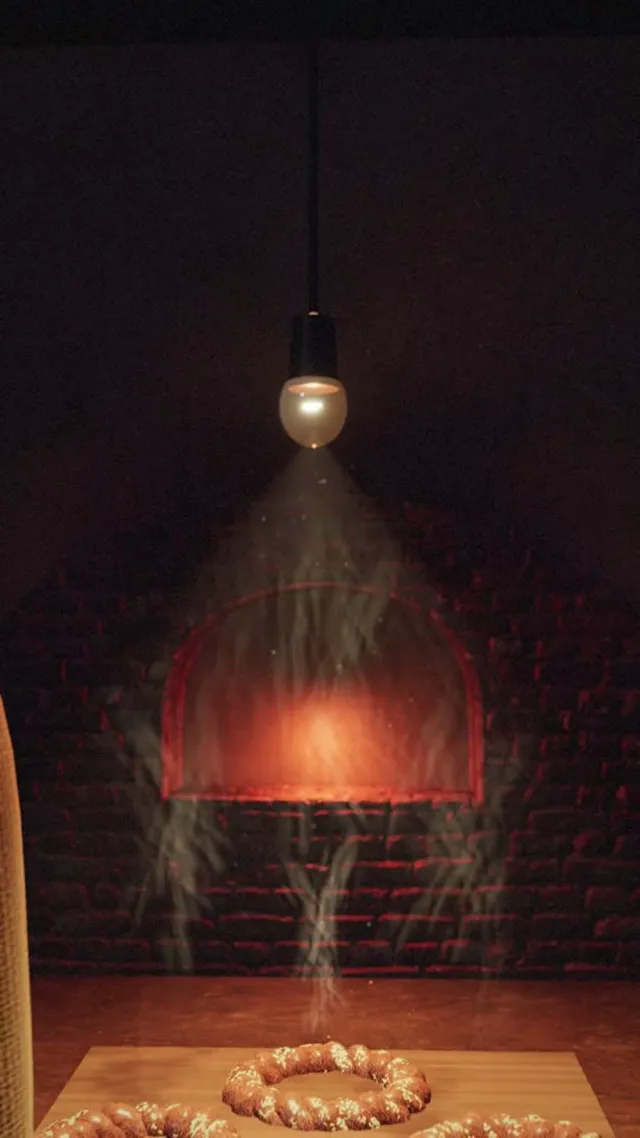
The other two images are official stills:
- Watch ad: inspect how the metal mechanism, engraved lines and diagonal light reveal product details.
- Bakery ad: inspect how warm lamps, a brick oven, bread and steam suggest fresh baking.
Use the same vocabulary in your brief. Replace “cinematic” with visible objects, materials, lighting and actions. For coffee, describe the cup rim, reflections on the liquid, steam and pouring motion before choosing a visual style.
Install and prepare a working folder
Use Claude Code or Cursor with access to local tools. You need Node.js 22+, Python 3.9+, ffmpeg, and Chrome, Chromium or Edge. For full-film rendering, you also need a GPU the browser can use, such as a recent Mac or a PC with a working graphics driver.
- Ask your coding assistant: “Install the cinecode skill from https://github.com/sarpstar/cinecode.” Alternatively, install it in a terminal using the command for your client:
# Claude Code
git clone https://github.com/sarpstar/cinecode.git ~/.claude/skills/cinecode
# Cursor
git clone https://github.com/sarpstar/cinecode.git ~/.cursor/skills/cinecode- Start a new conversation and select an empty folder for the film. Keep the installed skill kit separate from your film working folder.
- Ask the assistant to check Node, Python, ffmpeg, the browser and GPU. Follow its installation instructions for missing tools. Continue once it reports the tools and working directory it will use.
Activate the skill with natural language; no extra plugin slash command is needed. This first exercise uses no narration or external music, so it requires no voice-service key. Later, provide your own narration or configure the service the assistant recommends.
Choose Quick mode and approve two scene previews
Quick mode puts the pictures, timeline and Web Audio soundtrack into one film.html. It is a useful starting point for a short film. Film mode adds stages such as the script, style frames and animatic; use it later for longer projects or subjects with more research material.
- Send this exercise request, written by Opuskill, in the AI conversation for your empty working folder:
Use cinecode to make a 15-second, 9:16 vertical coffee ad.
Use Quick mode, with Ads & Products as the purpose.
The story is “from one coffee bean to a hot cup”, for the fictional shop Morning Coffee.
No narration. Write the music in code, with pouring and cup-on-table sound effects.
First recommend two visual directions, describing materials, lighting and main actions.
Use English on-screen text and a font that displays it correctly.
Show the timing plan and director card, then stills of the opening and a different scene.
Wait for my approval of both images before making the draft; do not finish the whole film immediately.- Choose a direction. Check that the director card specifies the aspect ratio, colors, shots, pacing, text and sound. Refine it with observable requests such as “finer steam” or “main light from the left.”
- Review both scene stills. Check that the beans, cup and liquid are recognizable and the text is complete and readable. Approve them before asking for a low-resolution draft.
Stills reveal direction and detail; check motion and sound in the draft. This exercise explicitly chooses code-written music. For recorded music, audition candidates or provide your own track before settling the timing.
Review the draft and request a local change
Watch the whole draft once, then review specific issues:
- Does the opening already contain action? Does the sequence from coffee bean to cup flow smoothly?
- Is the text readable at phone size, and does the shop name remain long enough?
- Do pouring and cup sounds line up with the actions? Does the music obscure them?
A draft reduces resolution, rather than omitting necessary objects or materials. Resolve pacing issues that stills cannot reveal at this stage.
Then request a change with a clear scope:
Only change the ending: hold “Morning Coffee” for 1 second longer.
Keep the total length at 15 seconds by taking that second from the previous transition.
Keep the shop name, font, cup material and music style; adjust affected sound-effect timing.
Show an updated draft first without redesigning the whole film.
Compare the new ending, transition and sound cues with the previous draft. Naming the object, amount and related timing change helps the assistant keep the edit focused.
Export the MP4 and keep the editable project
After approving the draft, ask the assistant to run the final render and quality checks. Quick-mode projects organize stills, drafts and final output through the stills, draft and final steps of tools/make.py; let the assistant execute them for the current project.
Check that delivery includes the film folder and the top-level <title>.mp4 path. Open the final file and recheck dimensions, duration, text and sound. The workflow processes loudness with a target of -14 LUFS.
Keep film.html, STATE.md, assets and audio files. STATE.md records project choices and progress so the assistant can resume later. When using external assets, retain LICENSES.csv and any generated credits file, and follow their attribution requirements when publishing.
The MP4 is for playback or upload; the editable project lets you change copy, swap products or adjust shots. Render again after code changes to update the video.
Use your own product, story or song
Replace the coffee example with your own material by filling in this brief:
Use cinecode to make: [short film / product ad / music video].
Subject and audience: [who it is for and what they should remember].
Duration and frame: [seconds; 9:16 / 16:9 / 1:1].
Must show: [product details, characters, actions or text].
Visual direction: [reference or two approaches to compare].
Sound: [narration language / no narration; own music path / audition candidates / code-written music / no music].
Existing assets: [paths to logos, images, songs or recordings].
Recommend a suitable mode and show the shot plan and previews before making the whole film.
For a music video, give the assistant the song to measure its beats, then align cuts and actions with the music. For longer documentaries, chapter-based explainers or projects needing research and archival material, choose Film mode and review the roadmap, script, style frames and animatic before the draft and final render.
For a series, ask to save the format after finishing. Reuse the organization of visuals and sound in the next episode, while making its story, shots and text fit the new subject.