Refine AI Creations Against Your References
Give AI reference images or videos and have it refine a visual project against them. Cook organizes repeated rounds of building, rendering stills, comparing results and independent review, with your approval before the final render.
Works with Claude Code · Codex
Overview
What you get
- A visual project with stills compared against your references.
- Round-by-round review, targeted fixes and a record in cook/ROUNDS.md.
- A final render after you approve the stills, plus project files that support further edits.
Good fit
- Building a 3D scene or code-rendered film against a clear visual reference.
- Refining a website or product video through repeated visual comparisons.
Tutorial
Move from a working build to a closer visual match
An AI-built scene can run correctly and still look far from its reference. Cook turns the work into repeated comparisons: study composition, light, color and materials, render stills, identify gaps and fix them. The author calls this the Cook Loop.
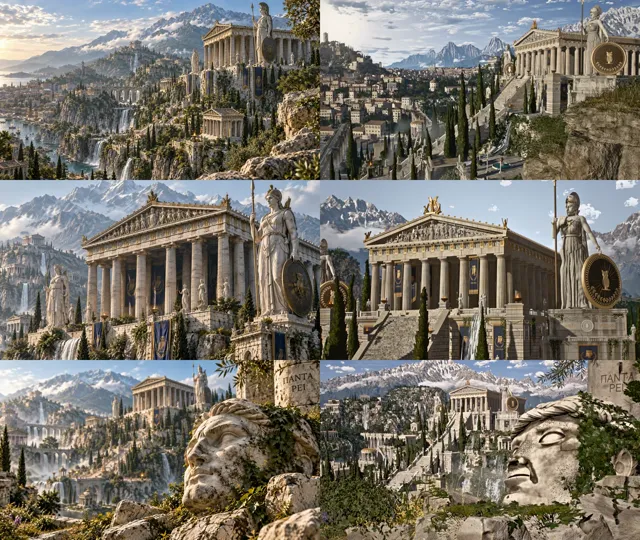
The video above shows the author’s code-built ancient Greek world. The comparison image places generated references on the left and code renders on the right. Compare the temple’s scale, sky color and distant buildings: the atmosphere is similar, but visible differences give each new round a focus.
That large project used nine reference images and took about 45 hours. Start here with one image and one scene to learn how to specify a target and give useful feedback.
Choosing between existing interface workflows
- unslop audits and refines an existing website around its product purpose.
- Cook works toward a supplied visual target through repeated builds and comparisons, across 3D scenes, films and websites.
Install and check the invocation
- Run the official installation command in your terminal and select Claude Code or Codex when prompted:
npx skills add Leonxlnx/cook- Open an AI session in your target project. In the next section, attach an image and send the complete practice request. Use
/cookin Claude Code or$cookin Codex.
Install the whole skill, including its references, templates and comparison script. The side-by-side script needs Node.js 18+ and ffmpeg.
Complete a first round from one image
- Choose an image you want to turn into a 3D scene. Put it in the project and attach it to the conversation. Start with a clear subject and a fixed viewpoint.
- Send the practice request below. This site adapted it from the official template. In Codex, replace the first line with
$cook.
/cook
Build one three.js scene from the attached reference image.
Finish this view before expanding into a whole world.

Prioritize subject placement, camera angle, light direction and color.
Generate models, materials and effects in code. No music yet.
Cap this run at 45 minutes, then report the result and remaining gaps.

Render stills from the same camera each round.
Show the reference on the left and the result on the right.
Have critics with no build context identify the biggest gaps, then fix them.
Deliver stills and project files first. No final video yet.
Ask any clarifying questions in one batch before starting. Keep files in this project.- Answer the agent’s initial questions. Confirm the target view, permitted assets and time cap. Check that the agent creates
cook/BRIEF.md,cook/SHOTS.mdandcook/ROUNDS.mdfor the brief, reference shots and round history. - When the stills arrive, check that the reference and render use comparable framing and aspect ratios. Align the camera before judging materials and detail.
Round stills go in cook/stills/, comparisons in cook/compare/, and notes in cook/ROUNDS.md. Use the specific gaps in the paired images to choose the next fix.
Change one thing and inspect the result
Instead of asking for “better,” pick the most distracting difference. If the sky looks too grey, send:
Change only the sky this round: make the blue clearer while preserving
the reference’s warm sunset light.
Keep subject placement, camera and building shapes unchanged.
Render another comparison from the same camera so I can judge the color.
Check whether the sky is closer to the reference and whether the subject or framing changed with it. Naming both the change and what should stay fixed helps focus the next round.
Later feedback can name a region, distance or time range: “the distant trees are too sparse” or “the transition at 18–22 seconds is too fast.” Marked screenshots also work. Your feedback takes priority over critic scores.
Approve the stills, then choose the deliverable
Once you approve the stills, request a 3–5 second test at final settings to check motion and rendering time before a full export. For example:
The stills are approved. Render a 3-second slow camera test at 1080p, 30fps.
No on-screen text and no music yet. Give me the preview path and an estimate
for the full export. Wait for my approval of the preview before rendering
the full 15-second film.
This is the site’s suggested staged export request. Inspect camera smoothness and flickering detail in the preview, then send “Preview approved; begin the full render.” If you want music, specify permitted sources and retain the required credits.
For your own task, use the official brief template to change the subject, references, budget and deliverable. For a website, attach screenshots of the pages you want to match; for motion, supply reference videos. Keep the method of comparable views, specific feedback and repeated fixes. A website can be delivered as a runnable page without the film-export steps.